Add Lines and Arrows
Mark paths that stay attached to spaces
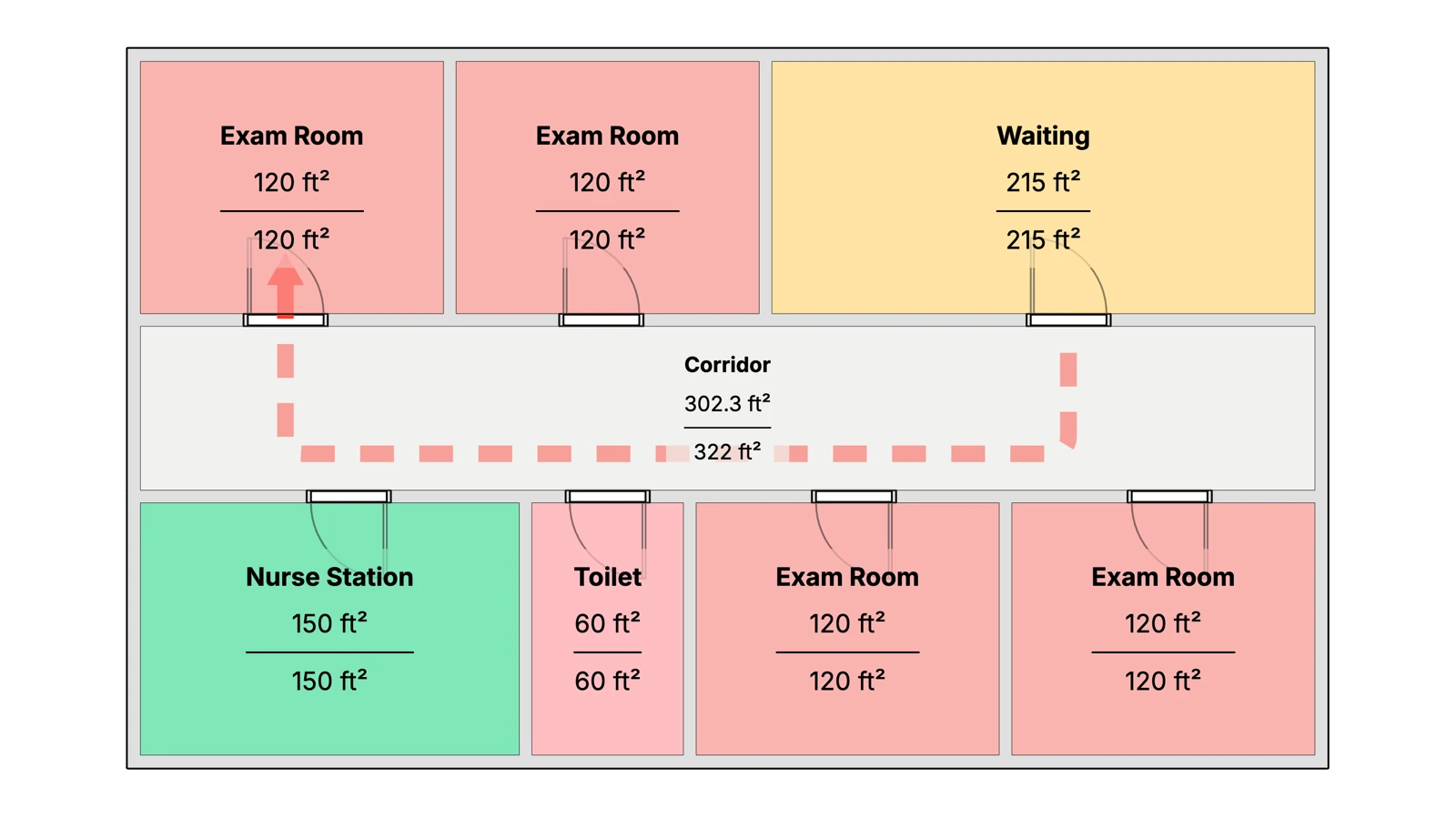
Showing a client how people move through your plan? Even if a waiting area moves late, now you can attach arrows to spaces, so you rearrange the plan in front of your client.
Here’s how it works:
- Open Annotations › Arrow
- Click points, then press Enter
- Pick dashed or dotted in Line style
Get lines that stay connected as you edit
- Export a PDF or image to include your paths
- Place a line end on a space to tie it to that space